> For the complete documentation index, see [llms.txt](https://docs.g-iot.io/llms.txt). Markdown versions of documentation pages are available by appending `.md` to page URLs; this page is available as [Markdown](https://docs.g-iot.io/platform-user-guide-book/fota/create-fota-campaign.md).
# Create FOTA campaign
### Steps to Create a FOTA Campaign
#### 1. **Access the FOTA Campaign Section**
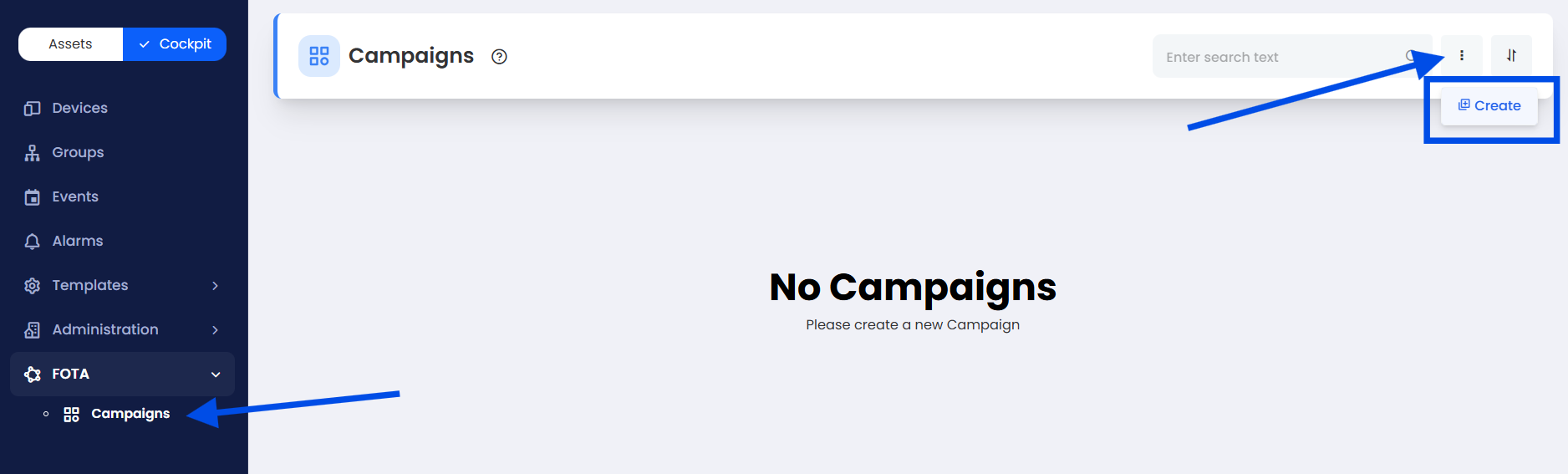
* From the **Cockpit Menu**, click on **FOTA**.
* Select the **Campaign** tab to view existing campaigns.
* In the top-right corner, click the **ellipsis icon (⋮)** and choose **Create Campaign**.
#### 2. **Fill in Campaign Details**
**General Information:**
* **Campaign Name**:\
Use a clear and descriptive name (e.g., “LM Update – EU – Q3/2025”).
* **Device Type**:\
Choose between:
* **Level Meter (LM)**
* **Low-Cost Tracker (LCT)**
{% hint style="info" %}
Device-specific rules apply depending on your selection.
{% endhint %}
### 3. For Level Meter (LM) Devices
When creating a campaign for **LM devices**, the following fields are required:
* **Campaign Name**
* **Group** (optional but recommended)
* **Device Type**: Must be set to *Level Meter (LM)*
* **Expected Firmware Version for A-series devices**
* **Expected Firmware Version for B-series devices**
**Important Notes**:
* Devices with serial numbers starting with:
* **A...** or **B...** → ✅ Eligible for FOTA updates
* **86...** → ❌ Not FOTA-compatible — they will be excluded automatically
* **Target Group (Optional but Recommended)**\
Restrict the campaign to a **specific group**. Only devices within this group matching the selected **device type** and firmware rules will be included in the update.
### 4. For Low-Cost Tracker (LCT) Devices
When creating a campaign for **LCT devices**, the required fields are:
* **Campaign Name**
* **Group** (optional but recommended)
* **Device Type**: Must be set to *Low-Cost Tracker (LCT)*
* **Firmware Filename**: Must be a **numeric-only** value (letters are not allowed)
* **Expected Firmware Version**: Devices with the same or higher versions will be excluded
* **FTP Server IP**: Pre-filled as `172.25.102.151`, but can be changed
* **FTP Server Port**: Default is `21`, but can also be changed if needed
{% hint style="warning" %}
The new campaigns that contains devices already running the **expected firmware version** or a **higher version** will also be excluded.\
*Example: If you enter `2.1.1.1`, any device on `2.1.1.2` will not be updated.*
{% endhint %}
### 5. **Create the Campaign**
Once all necessary fields are completed:
* Click **Complete**.
* **Campaign card** will be created showing:
* Total number of targeted devices
* Campaign status
* Assigned group name
{% hint style="info" %}
LCT Campaign cards and **do not include** `Update 1` and `Update 2` statuses. The update will jump directly to `Running`.
{% endhint %}
### Understanding Campaign Status (LM Devices)
| Status | Description |
| ------------- | ------------------------------------------------------------------- |
| **Update 1** | The FTP Server IP is sent to the device. |
| **Update 2** | The update command is been sent to the device |
| **Running** | The actual firmware update process is underway. |
| **Completed** | The firmware update has finished successfully. |
| **Error** | Something went wrong during the process (e.g., device unreachable). |
> **LCT campaigns skip Update 1 & 2** and proceed directly to **Running** once initiated.
Campaign Overlap Restrictions
* You **cannot launch two FOTA campaigns** simultaneously if they share **any device**.
* If a second campaign includes a device already targeted in another running campaign, it will **fail to start** and show an error.
* In this case, you must manually start the second campaign **after the first has finished**.
***
### Best Practices
* Confirm firmware versions before launching campaigns.
* Always verify device serial numbers and expected versions.
* Start campaigns during low-traffic hours to minimize disruption.
* Avoid overlap by clearly grouping devices for unique campaigns.
---
# Agent Instructions
This documentation is published with GitBook. GitBook is the documentation platform designed so that both humans and AI agents can read, navigate, and reason over technical content effectively. Learn more at gitbook.com.
## Querying This Documentation
If you need additional information that is not directly available in this page, you can query the documentation dynamically by asking a question.
Perform an HTTP GET request on the current page URL with the `ask` query parameter, and the optional `goal` query parameter:
```
GET https://docs.g-iot.io/platform-user-guide-book/fota/create-fota-campaign.md?ask=&goal=
```
`ask` is the immediate question: it should be specific, self-contained, and written in natural language.
`goal` is optional and describes the broader end goal you are ultimately trying to accomplish on behalf of the user. GitBook uses it to tailor the answer towards what is most useful for that goal.
The response will contain a direct answer to the question and relevant excerpts and sources from the documentation.
Use this mechanism when the answer is not explicitly present in the current page, you need clarification or additional context, or you want to retrieve related documentation sections.