> For the complete documentation index, see [llms.txt](https://docs.g-iot.io/llms.txt). Markdown versions of documentation pages are available by appending `.md` to page URLs; this page is available as [Markdown](https://docs.g-iot.io/platform-user-guide-book/group/groups-dashboard/groups-dashboard-widgets.md).
# Group’s Dashboard Widgets
The **Group’s Dashboard** provides a consolidated view of all devices belonging to a specific group.\
It is composed of configurable widgets that allow users to quickly monitor status, analyze data, and detect anomalies across the group.
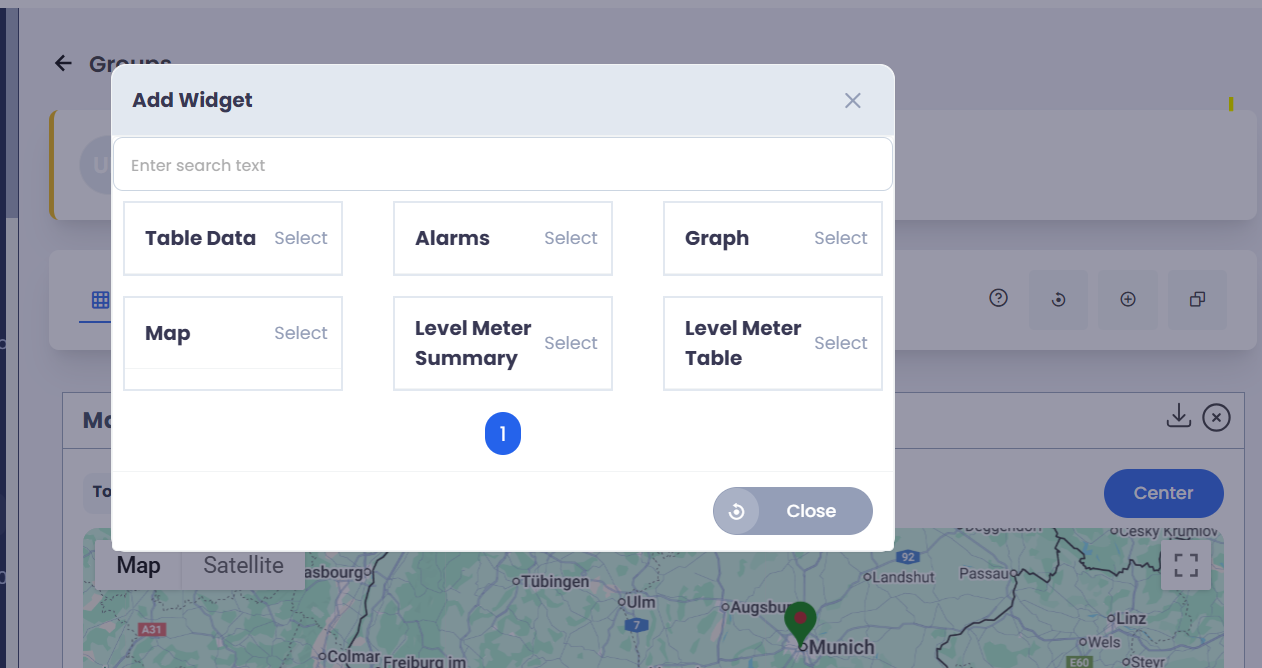
#### Available Widgets
* **Main Statistics**
* **Table Data**
* **Alarms**
* **Graphs**
* **Map**
* **Level Meter Summary**
#### Table Data
The **Table** widget presents detailed device information in a structured tabular format, allowing users to easily compare parameters across all devices in the group.
**Configuration:**\
The widget can be configured by:
* Selecting the **device type**
* Selecting one or more **parameters** to be displayed as table columns
* Clicking multiple parameters to show them simultaneously in the same table
This widget is especially useful for operational analysis, troubleshooting, and bulk monitoring of device parameters.
***
#### Alarms
The **Alarms** widget provides a real-time overview of all alarms generated by devices within the group.
The widget displays alarms by severity:
* Critical
* Major
* Minor
* Warning
**Configuration:**\
No configuration is required.\
All alarms associated with the group are automatically displayed.
Users can click on any severity section to open a detailed view showing the alarms belonging to that specific severity level.
Alarm rules are defined elsewhere in the platform; this widget focuses on visualization and navigation at group level.
***
#### Graphs
The **Graphs** widget visualizes time-series data for one or more parameters across the group, enabling trend analysis and performance comparison.
**Configuration:**\
The widget requires:
* Selection of the **device type**
* Selection of one or more **parameters (metrics)**
Multiple parameters can be displayed within the same graph, or users can create multiple graphs to visualize metrics in the most effective configuration.
Graphs can be displayed using different chart types, such as line charts or bar charts, depending on the selected data.
***
#### Map
The **Map** widget displays the geographical location of all devices in the group, providing spatial awareness and location-based monitoring.
**Configuration:**\
No configuration is required.\
All geolocated devices within the group are automatically shown on the map.
Devices are represented using different colored pins to indicate their current state (for example, online, offline, or alarmed).
***
#### Level Meter Summary
The **Level Meter Summary** widget provides an aggregated view of level-based data (such as fill level, capacity, or percentage metrics) across the group.
The widget displays level ranges in predefined bands:
* 0–10%
* 10–20%
* 20–30%
* …
* 90–100% (completely full)
For each level range, the widget shows the number of devices belonging to that group.
**Configuration:**\
No configuration is required.
Users can click on a specific level range to explore which devices are currently in that state.\
It is also possible to export the list of devices for a selected level range in **CSV format**.
***
#### Level Meter Table
The **Level Meter Table** widget provides a detailed, configurable table view of level-related device data.
**Configuration:**\
Users can:
* Select which columns are most relevant for their use case
* Drag and reorder columns to define the preferred layout
* Display up to **11 columns**, including for example:
* Level %
* Serial number
* Device name
* Group
* Level (mm)
* Container ID
* Battery level
* Warning level
* Critical level
Once configured, the layout can be saved to generate the table according to the selected configuration.
---
# Agent Instructions
This documentation is published with GitBook. GitBook is the documentation platform designed so that both humans and AI agents can read, navigate, and reason over technical content effectively. Learn more at gitbook.com.
## Querying This Documentation
If you need additional information that is not directly available in this page, you can query the documentation dynamically by asking a question.
Perform an HTTP GET request on the current page URL with the `ask` query parameter, and the optional `goal` query parameter:
```
GET https://docs.g-iot.io/platform-user-guide-book/group/groups-dashboard/groups-dashboard-widgets.md?ask=&goal=
```
`ask` is the immediate question: it should be specific, self-contained, and written in natural language.
`goal` is optional and describes the broader end goal you are ultimately trying to accomplish on behalf of the user. GitBook uses it to tailor the answer towards what is most useful for that goal.
The response will contain a direct answer to the question and relevant excerpts and sources from the documentation.
Use this mechanism when the answer is not explicitly present in the current page, you need clarification or additional context, or you want to retrieve related documentation sections.